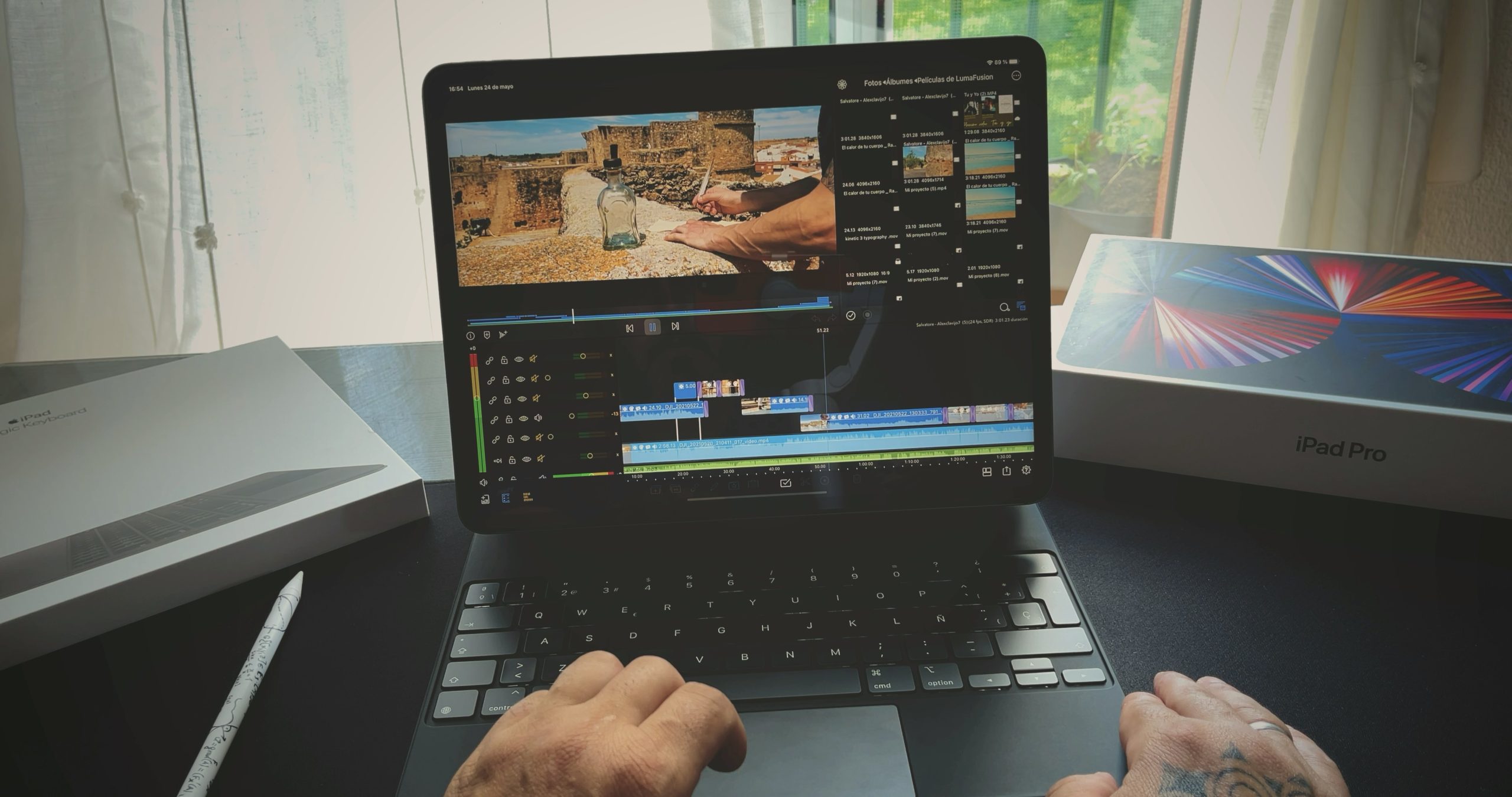
VLC Media Player is a powerful tool for video playback. It supports many formats and offers advanced features. One standout feature is its frame-by-frame navigation.
This feature allows users to move through videos one frame at a time. It’s perfect for detailed video analysis and editing. Whether you’re a video editor or a film student, this tool is invaluable.
Using VLC’s frame-by-frame function, you can capture precise moments. This is useful for creating GIFs or studying complex scenes. The feature is easy to access and customize.
VLC Media Player is free and user-friendly. Its frame-by-frame navigation enhances your video experience, offering control and precision. Dive into the world of VLC and master frame-by-frame navigation today.
What Is Frame-by-Frame Navigation in VLC?
Frame-by-frame navigation in VLC Media Player is a feature that provides meticulous control over video playback. This tool empowers users to view one frame at a time, offering precision that’s ideal for detailed analysis or editing. It’s especially beneficial for those working with intricate video content.
Key benefits of this feature include:
- Detailed frame examination
- Accurate video analysis
- Precise editing control
This function’s utility spans various tasks, such as evaluating fast-paced scenes or crafting precise video clips. Users can pause a video and then proceed through each frame at their leisure, pinpointing key moments with ease.
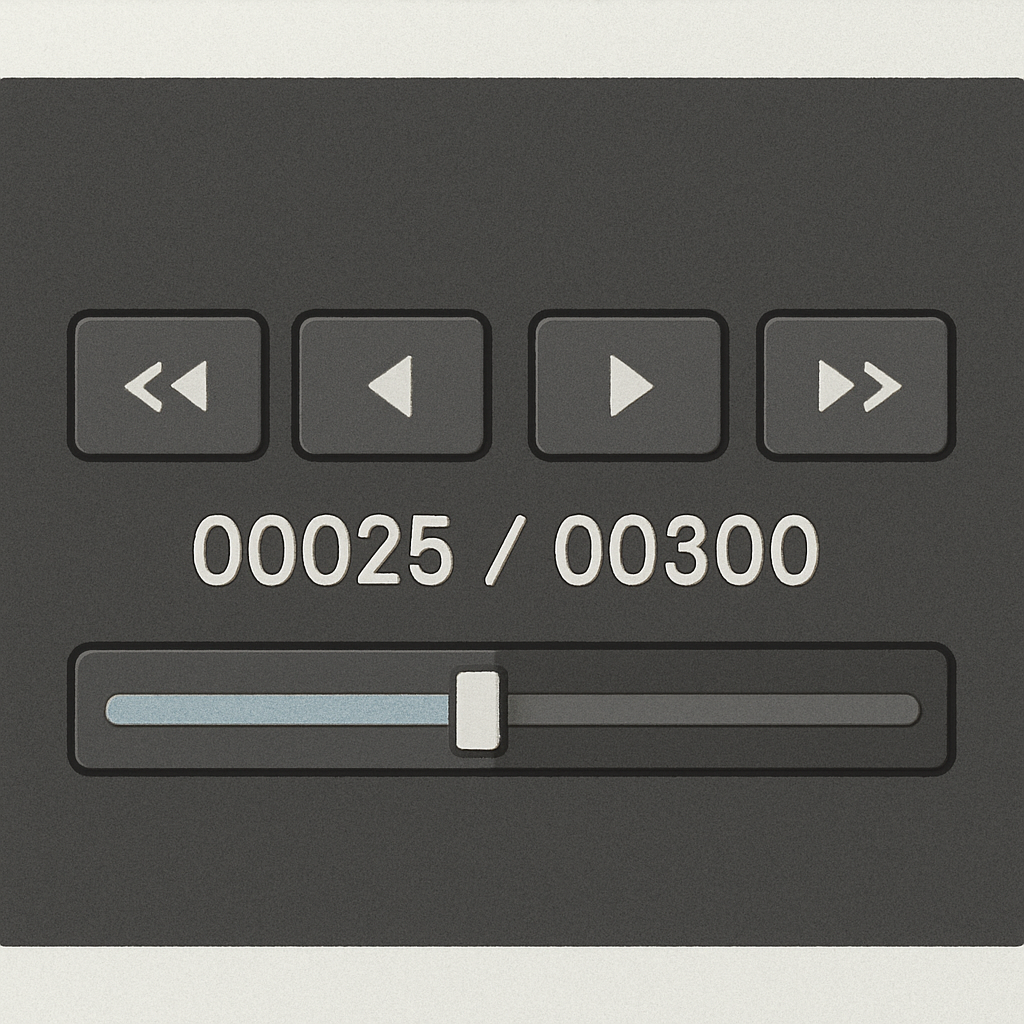
Frame-by-frame navigation in VLC is straightforward but powerful. It is accessible via simple keyboard shortcuts, ensuring that even beginners can take full advantage. Whether refining a video for class or dissecting a film scene, this feature is an essential tool in any media enthusiast’s kit.
Why Use VLC Frame by Frame?
Utilizing the VLC frame-by-frame feature grants users unmatched precision in video playback. This feature is particularly valuable for anyone needing comprehensive video analysis. The ability to dissect a video one frame at a time sets VLC apart.
Reasons to use this functionality include:
- Enhanced video quality control
- Thorough film studies
- Precise scene examination
Video editors and content creators can isolate crucial moments effortlessly. Film students benefit by closely examining techniques used in cinematography. Additionally, sports enthusiasts can analyze plays down to individual motions.

The frame-by-frame option transforms VLC Media Player into a robust analysis tool. It enables users to uncover and focus on details that might go unnoticed during standard playback, making it indispensable for various multimedia applications.
How to Use Frame-by-Frame in VLC Media Player
Navigating frame-by-frame in VLC is straightforward, letting you capture each frame’s essence. First, play your video and press ‘E’ to advance frame by frame. Each press moves the video forward by one frame, giving you complete control over the playback.
For those looking to use this feature extensively, a few steps will help you get started:
- Open VLC Media Player and load your video.
- Press pause on the video.
- Tap the ‘E’ key repeatedly for frame-by-frame viewing.

In addition to keyboard shortcuts, you can navigate through menu options. Go to ‘Playback’ in the menu bar, then select ‘Frame by Frame.’ This method is useful for users who prefer mouse interactions.
Advanced users often pair frame-by-frame viewing with VLC’s video filters. This combination allows for even more detailed analysis and editing. Filters can help you adjust colors and lighting in specific frames, enhancing the study of each frame.
Another powerful use of this feature is creating GIFs or short clips. By capturing frames, you can assemble sequences as desired. VLC Media Player’s flexibility with its frame-by-frame tool makes it a favorite among video enthusiasts.

Using Keyboard Shortcuts for Frame-by-Frame
VLC’s keyboard shortcuts simplify frame-by-frame navigation. Knowing a few key combinations can boost your productivity significantly. The primary shortcut for frame-by-frame is ‘E.’
Using the ‘E’ key steps forward by one frame at a time. This process can help in identifying subtle details in a scene.
Below are some useful shortcuts:
- Spacebar: Pause/Play
- F: Toggle Fullscreen
- Shift + Right Arrow: Skip forward

These shortcuts offer enhanced control over video navigation. Being familiar with them can streamline your video editing tasks. It’s a simple way to maximize VLC’s potential.
Customizing Frame-by-Frame Controls
Customization of VLC controls can optimize your workflow. For users who seek efficiency, altering shortcuts might be beneficial. Navigate to ‘Tools’ and choose ‘Preferences’ to begin.
Within the interface, select ‘Hotkeys.’ Here, you can change the default keys to fit your preferences.
Some custom options include:
- Assigning different keys for frame advancement
- Reconfiguring multimedia keys on your keyboard
- Adjusting volume control shortcuts

This level of customization allows you to create a tailored user experience. By doing so, VLC Media Player becomes even more versatile. Adapting controls makes video editing smoother and more intuitive.
Advanced Tips for Frame-by-Frame Analysis
Mastering frame-by-frame navigation in VLC requires more than just knowing the basics. Taking advantage of VLC’s lesser-known features can significantly enhance your video analysis. Experimenting with different VLC extensions can uncover hidden capabilities.
For those analyzing fast-paced videos, combining frame-by-frame navigation with screenshots can be immensely helpful. Capture frames to create a visual timeline, allowing for a comprehensive review of events. This method is particularly useful for sports analysis or film study.
Consider these advanced techniques:
- Use the A/B loop feature to repeatedly view a video segment
- Apply video filters for detailed enhancement
- Utilize the playlist feature to analyze multiple videos back-to-back

Incorporating these techniques can elevate your video editing and analysis. They provide a deeper insight into each scene, enabling a nuanced study. By leveraging these tools, you’re not just watching video—you’re mastering it.
Common Issues and Troubleshooting
Despite VLC’s robust features, users may encounter issues with the frame-by-frame function. Problems often arise from software glitches or incorrect settings. Fear not; most issues have simple fixes.
Common problems include:
- Key shortcuts not responding
- Video playback stuttering
- Incomplete frame advance
To troubleshoot, update VLC to the latest version. Updates often resolve many known bugs. If you experience key shortcuts failing, verify that they’re assigned correctly in settings. For stuttering playback, lower the video resolution or close unused programs to free system resources.
By addressing these common challenges, you can ensure smooth frame-by-frame navigation. This will enhance your video editing and analysis experience.
Frequently Asked Questions
VLC’s frame-by-frame feature sometimes raises questions. Here are answers to the most common queries.
FAQs include:
- Can I use frame-by-frame on mobile devices?
- How do I reset shortcuts if they stop working?
- Is frame-by-frame available for all video formats?
Frame-by-frame is primarily for desktop versions. To reset shortcuts, go to settings and reassign keys as needed. Lastly, while frame-by-frame works with most formats, ensure your video codec is supported. These insights should clarify your doubts and enhance your VLC experience.
Conclusion: Unlocking the Power of VLC Player Frame by Frame
Mastering frame-by-frame navigation in VLC Media Player elevates your video analysis skills. This feature offers granular control, whether for education or video production. Embrace its capabilities to perfect your understanding and editing of visual content.