VLC Media Player is a versatile and powerful tool that millions of users worldwide rely on for playing their favorite media files. While its user-friendly interface is easy to navigate, mastering VLC hotkeys can significantly enhance your playback experience. In this article, we’ll explore the essential VLC keyboard shortcuts, or hotkeys, that will make your media sessions more efficient and enjoyable.
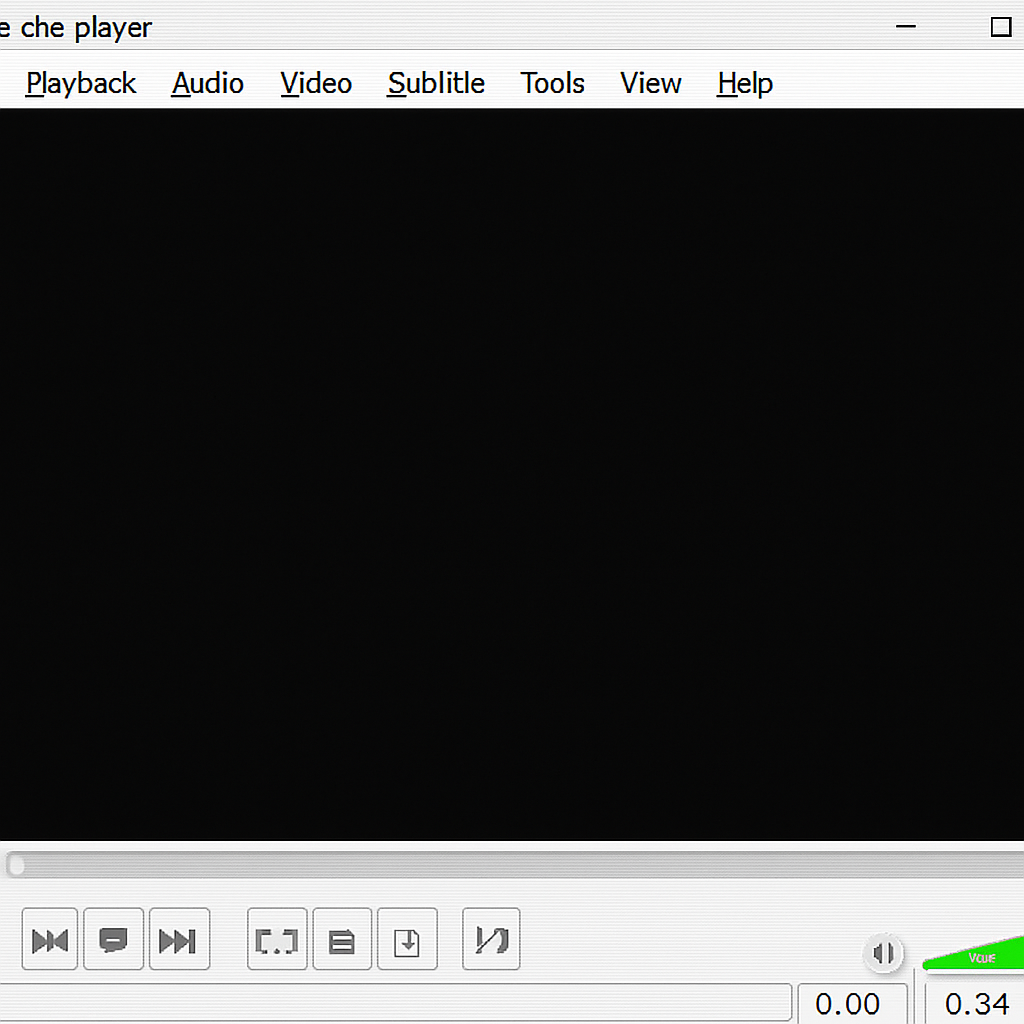
VLC hotkeys are designed to streamline your media playback by allowing you to control the player without using a mouse. These shortcuts can save you time, make your viewing experience more seamless, and are particularly useful when watching videos in fullscreen mode. By using hotkeys, you can quickly adjust settings, navigate through media, and even perform complex tasks with ease.
Basic Playback Controls
Play and Pause
One of the simplest yet most frequently used VLC hotkeys is the spacebar. Pressing the spacebar toggles between play and pause, allowing you to start or stop your media instantly.
Stop Playback
To stop playback entirely, press the S key. This will halt the video or audio and reset it to the beginning.
Fast Forward and Rewind
- Fast Forward: Press the Shift + Right Arrow to fast forward by 10 seconds.
- Rewind: Press the Shift + Left Arrow to rewind by 10 seconds.
These shortcuts are perfect for skipping through content quickly or revisiting a specific scene.
Jump to Specific Time
To jump to a specific time in your media, press Ctrl + T. This will open a dialog where you can enter the exact time you wish to jump to, making it easy to navigate long videos.
Adjusting Playback Speed
Increase and Decrease Speed
VLC allows you to adjust playback speed, which is particularly useful for reviewing tutorials or skipping through slow sections.
- Increase Speed: Press + to speed up playback.
- Decrease Speed: Press – to slow down playback.
Normal Speed
To return to normal speed, press =. This ensures your media is played at the intended speed.
Audio and Subtitles
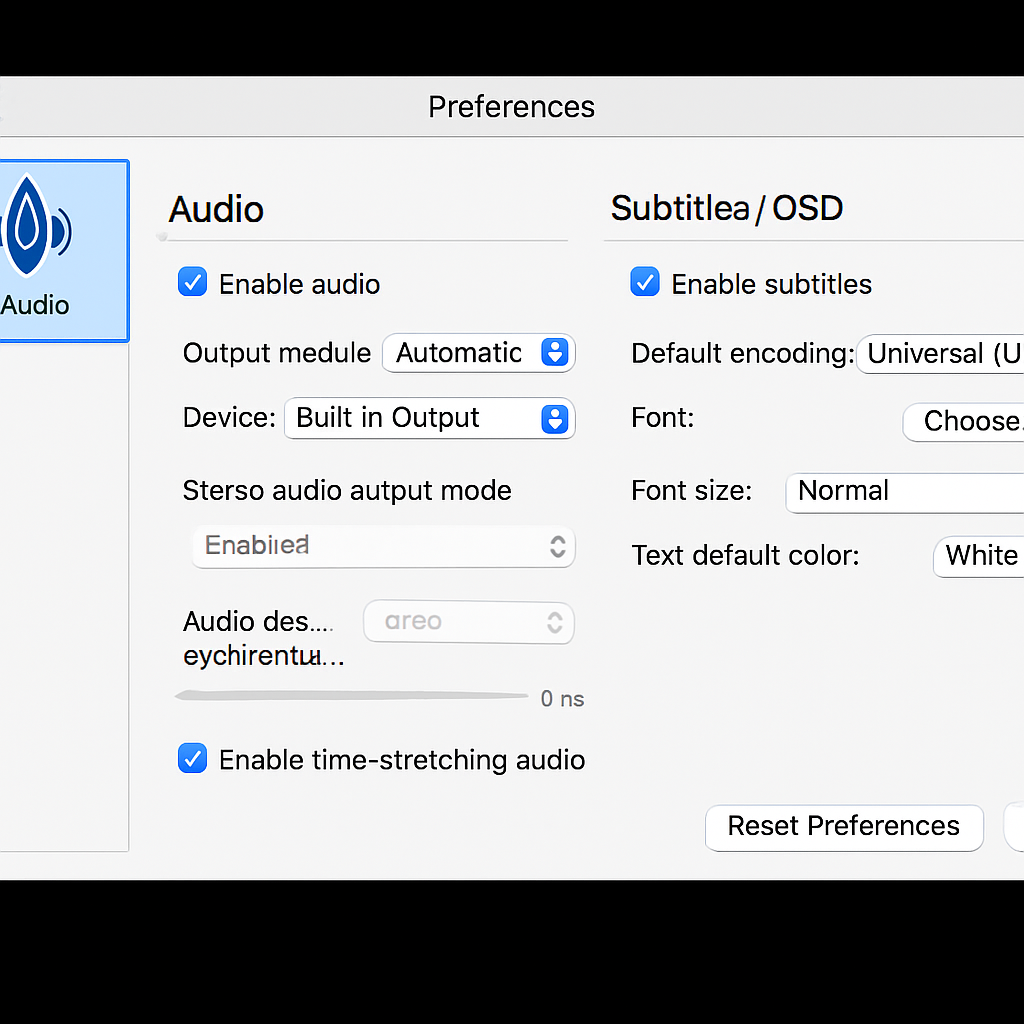
Mute and Volume Control
- Mute/Unmute: Press M to mute or unmute the audio.
- Increase Volume: Press Ctrl + Up Arrow to increase the volume.
- Decrease Volume: Press Ctrl + Down Arrow to decrease the volume.
These shortcuts provide quick access to audio settings without interrupting your viewing experience.
Subtitle Options
- Toggle Subtitles: Press V to toggle subtitles on or off.
- Next Subtitle Track: Press B to switch to the next subtitle track if multiple tracks are available.
Video Controls and Settings
Fullscreen and Windowed Mode
- Fullscreen: Press F to toggle fullscreen mode.
- Exit Fullscreen: Press Esc to return to windowed mode.
Fullscreen mode is ideal for an immersive viewing experience, while windowed mode allows for multitasking.
Aspect Ratio and Crop
- Cycle Aspect Ratio: Press A to cycle through different aspect ratios. This is useful for adjusting the video to fit your screen properly.
- Crop: Press C to cycle through crop settings, which can help remove unwanted black bars.
Advanced Controls
Open File and Playlist
- Open File: Press Ctrl + O to open a new media file.
- Open Playlist: Press Ctrl + L to view your current playlist.
These shortcuts facilitate easy access to your media library and playlists.
Take Snapshot
To capture a screenshot of the current video frame, press Shift + S. This is perfect for saving memorable moments or scenes.
Advanced Preferences
To access VLC’s advanced preferences, press Ctrl + P. This opens a menu where you can customize VLC’s settings to suit your needs.
Customizing VLC Hotkeys
VLC offers the flexibility to customize hotkeys according to your preferences. To do this:
- Open VLC Media Player.
- Go to Tools in the menu bar.
- Select Preferences.
- Click on the Hotkeys tab.
From here, you can assign new shortcuts to any function, making VLC even more tailored to your playback habits.
Conclusion
Mastering VLC hotkeys can transform your media playback experience from simple to sophisticated. With these shortcuts at your fingertips, you’ll enjoy seamless control over your videos and audio files, whether you’re casually watching a movie or analyzing a detailed tutorial. By integrating these shortcuts into your routine, you’ll save time, reduce distractions, and make your media sessions more efficient. So, start practicing these VLC hotkeys today and take your viewing experience to the next level!